Your Complete Health & Fitness Calculator Suite
Track your wellness journey with accurate, science-based calculators. Get instant results for BMI, daily calorie needs, and body composition—all completely free.
Three Smart Health Tools on mynepalshop.com: BMI, Calories (TDEE), and Body Fat
If you’re trying to improve your health, you usually need answers to three simple questions: Where am I now? (BMI and body fat), how much should I eat? (calories/TDEE), and what should I aim for? (targets you can follow). On mynepalshop.com, these three calculators work together: Calculate BMI, Calculate Calories, and Calculate Body Fat.
This guide is written for real users (not filler). You’ll learn what each tool does, when to use it, how to use it step-by-step, how the formulas differ, common problems and fixes, pro tips, and FAQs.
Table of Contents
- Overview: Which tool should you use?
- 1) Calculate BMI
- 2) Calculate Calories (BMR & TDEE)
- 3) Calculate Body Fat (U.S. Navy Method)
- Comparison of formulas & what each result means
- Common problems & solutions
- Professional tips (how to get more accurate results)
- Frequently asked questions
Images used (stored in website root): 1.png (BMI), 4.png (Calories), 7.png (Body Fat).
Overview: What These Tools Are (and When to Use Each)
Each calculator answers a different question, and together they create a practical health picture.
| Tool | What it tells you | Best time to use it |
|---|---|---|
| Calculate BMI | A quick weight category estimate based on height and weight. | When you want a fast baseline or a simple trend metric. |
| Calculate Calories (BMR/TDEE) | Estimated daily calories to maintain weight + goal calories for loss/gain. | When you want to plan how much to eat per day. |
| Calculate Body Fat | Estimated body fat % + fat mass and lean mass using measurements. | When you want a more body-composition-focused view than BMI. |
1) Calculate BMI
What is the tool?
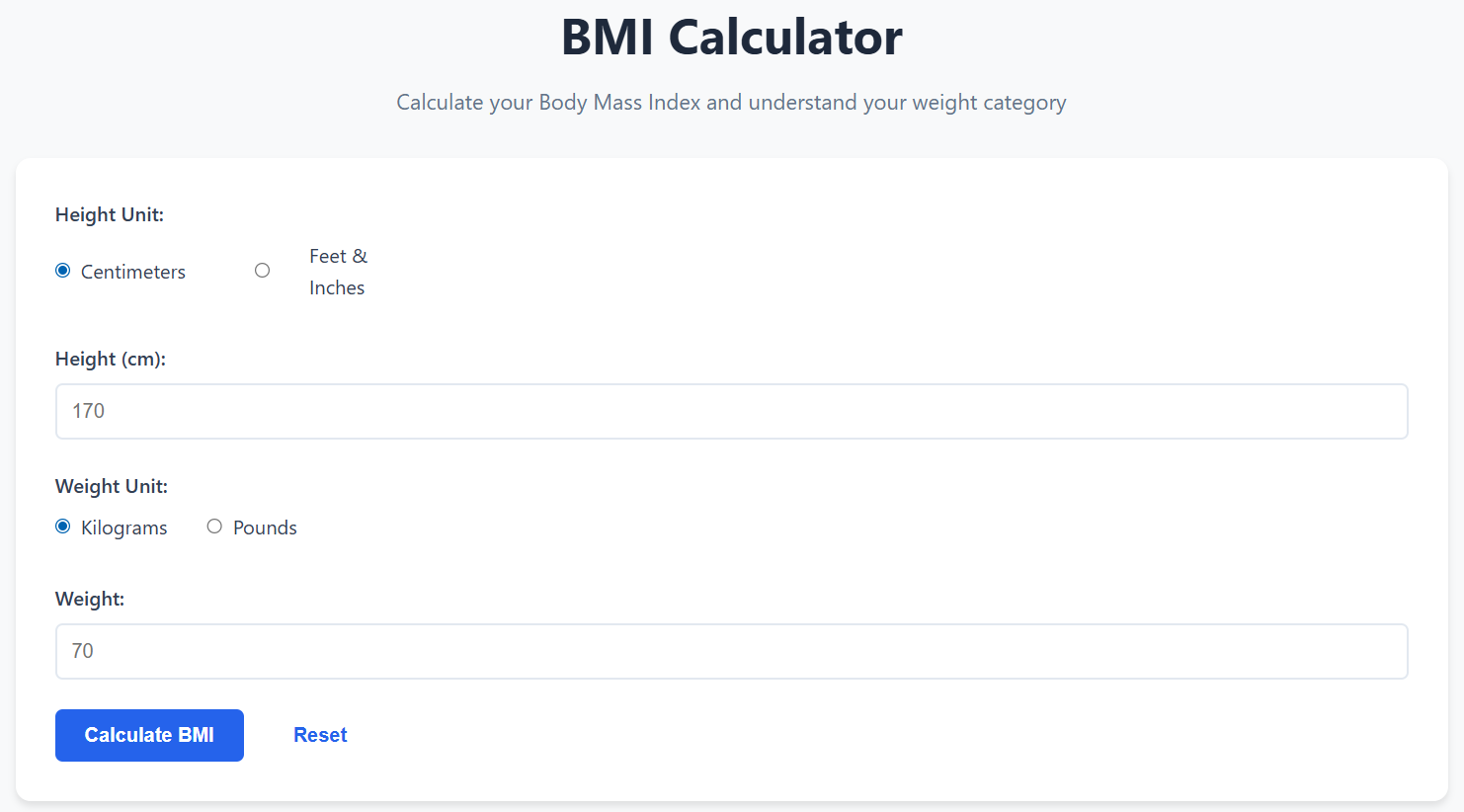
The BMI Calculator estimates your Body Mass Index using your height and weight. BMI is widely used because it’s fast, simple, and good for a broad screening estimate.
When should you use it?
- When you want a quick “where am I” estimate using only two inputs.
- When tracking weight change trends over time (especially if height is stable).
- When you need a simple metric to compare over months (not day-to-day).
Steps to use (practical)
- Select Height Unit: Centimeters or Feet & Inches.
- Enter your height in the correct field(s).
- Select Weight Unit: Kilograms or Pounds.
- Enter your weight.
- Click Calculate BMI to see your BMI and category.
- Use Reset if you want to try different values.
Comparison of formulas (BMI)
BMI = weight (kg) ÷ [height (m)]²
If you enter feet/inches or pounds, the tool converts them automatically into metric equivalents behind the scenes. The core idea stays the same: weight divided by squared height.
Common mistakes and quick fixes
- Wrong unit selected: Make sure pounds aren’t entered while kilograms is selected (or vice versa).
- Height entered incorrectly: Height errors affect BMI a lot because height is squared.
- Switching units mid-entry: If you change units, re-check your numbers.
2) Calculate Calories (BMR & TDEE)
What is the tool?
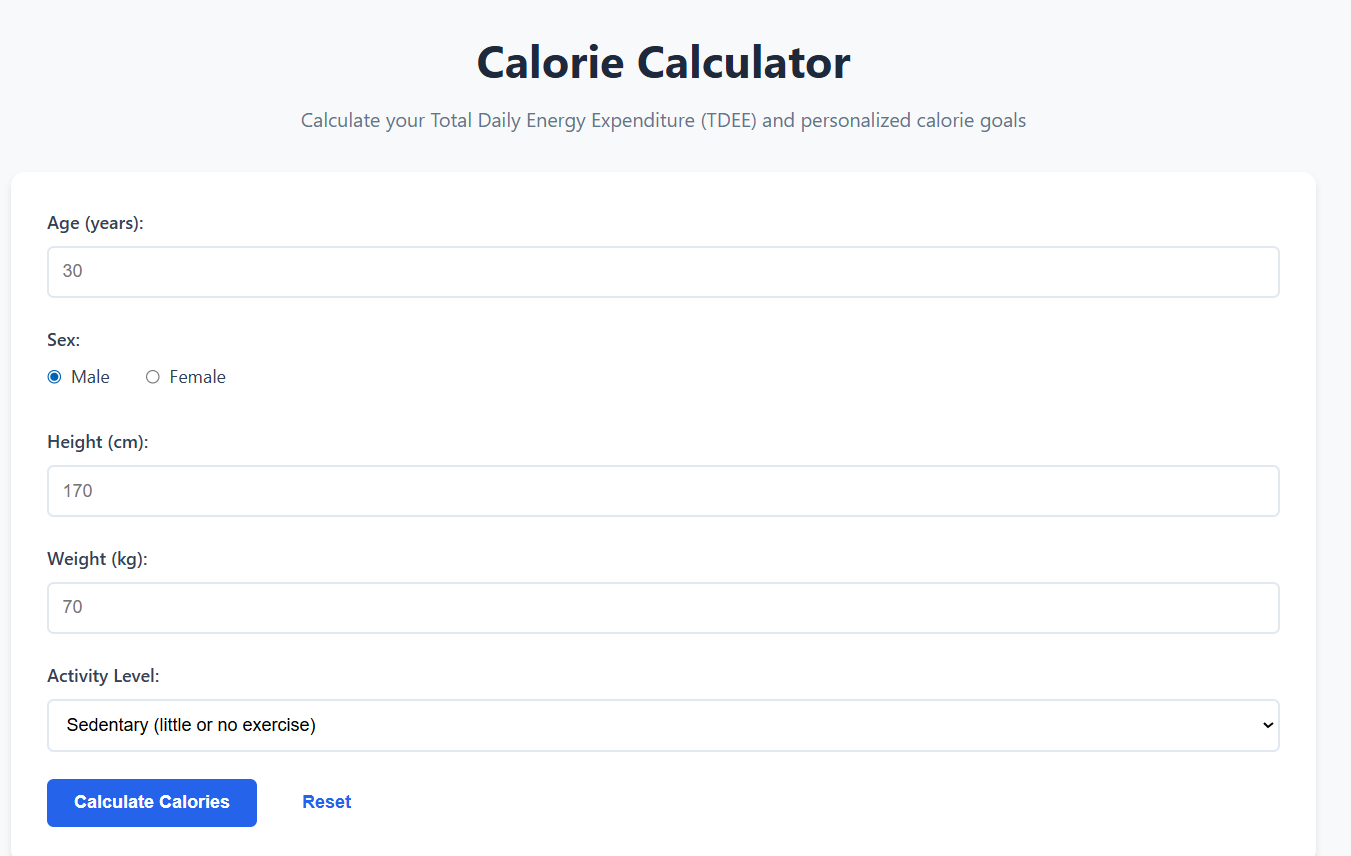
The Calorie Calculator estimates your BMR (baseline calories) and your TDEE (maintenance calories). It then generates daily calorie goals for weight loss, maintenance, or weight gain. This is the tool you use to answer: “How much should I eat per day?”
When should you use it?
- When you want a daily calorie target for fat loss, maintenance, or gaining weight.
- When you want to estimate maintenance calories (TDEE) based on activity.
- When you’re starting a new plan and need a reasonable “first number.”
Steps to use (practical)
- Enter your age (years).
- Select sex (Male/Female).
- Enter height (cm) and weight (kg).
- Choose your Activity Level honestly (average week, not best week).
- Click Calculate Calories.
- Read your BMR, TDEE, and recommended Calorie Goals.
Comparison of formulas (BMR & TDEE)
Most modern calculators use a BMR equation such as Mifflin–St Jeor, then multiply by an activity factor to estimate TDEE:
TDEE = BMR × Activity Factor
The activity factor depends on the dropdown choice (sedentary → extremely active). That’s why activity selection is the biggest “swing factor” in your final maintenance calories.
Common mistakes and quick fixes
- Choosing too high activity: If weight isn’t dropping on a deficit, your activity level may be overestimated.
- Expecting daily accuracy: Calories are estimates; track weekly averages, not daily scale changes.
- Going too aggressive: A huge deficit can be hard to maintain. Start moderate and adjust.
3) Calculate Body Fat (U.S. Navy Method)
What is the tool?
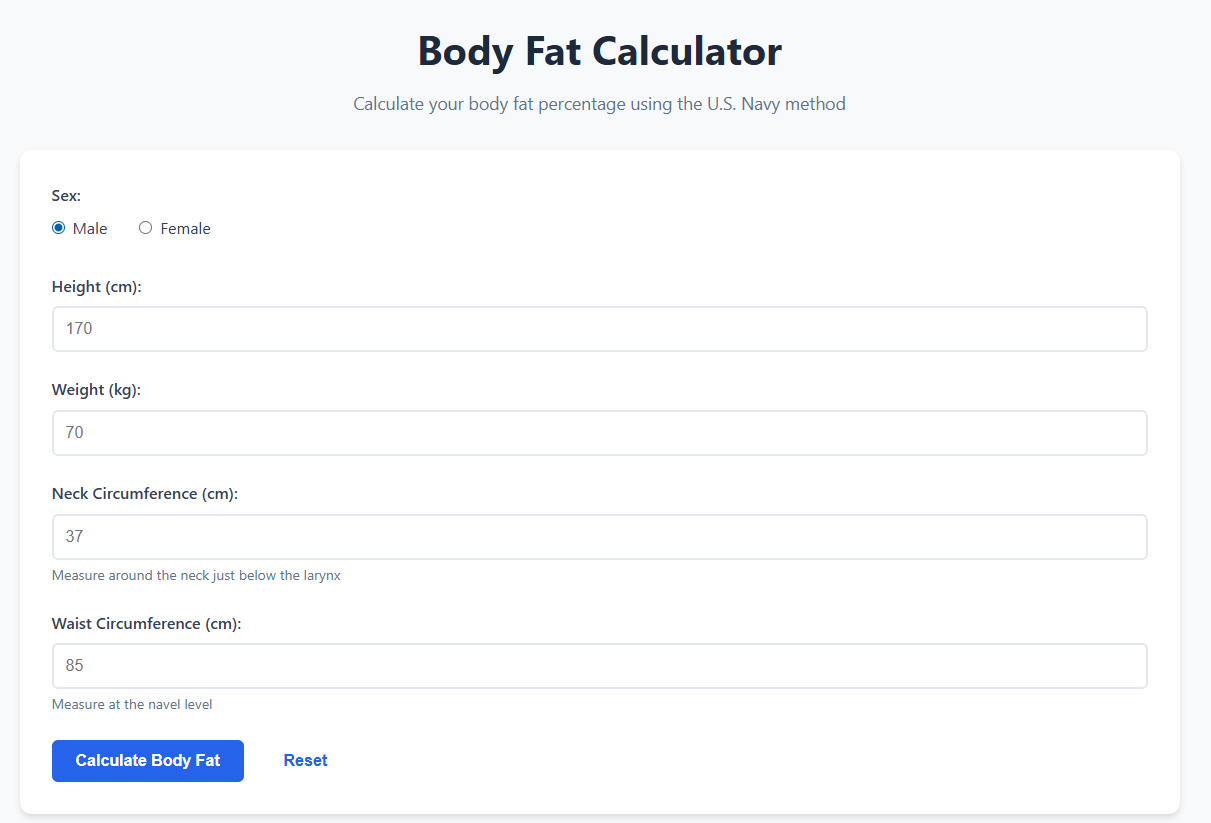
The Body Fat Calculator estimates your body fat percentage using the U.S. Navy method. Instead of using only height and weight, it uses circumference measurements (especially neck and waist) to estimate body composition.
When should you use it?
- When BMI feels “off” and you want a body composition-focused estimate.
- When you’re training and want to track fat loss while maintaining muscle.
- When you want a clearer view than body weight alone.
Steps to use (practical)
- Select sex (Male/Female).
- Enter height (cm) and weight (kg).
- Measure neck circumference just below the larynx (keep tape level, not tight).
- Measure waist circumference at navel level (normal exhale, don’t suck in).
- Click Calculate Body Fat.
- Review Body Fat %, plus Fat Mass and Lean Mass.
Comparison of formulas (U.S. Navy method)
The U.S. Navy method uses logarithmic relationships between height and circumference measurements to estimate body fat percentage. You don’t need to do the math yourself—the tool handles it.
Common mistakes and quick fixes
- Measuring waist too high/low: Measure at belly button level for consistency.
- Tape too tight: Pulling tight can reduce the measurement and distort results.
- Different time of day: Waist can change after meals; consider morning measurements.
Comparison of Formulas: What Each Tool Measures (and What It Does Not)
Here’s the most important comparison: these calculators measure different things. They are not “competing”—they are complementary.
| Tool | Main inputs | Main output | Best for | Main limitation |
|---|---|---|---|---|
| BMI | Height, weight | BMI number + category | Fast baseline, trend tracking | Doesn’t measure body fat directly |
| Calories (TDEE) | Age, sex, height, weight, activity | BMR, TDEE, goal calories | Planning daily intake | Activity level is an estimate; results vary |
| Body Fat % | Height, weight, neck, waist (+ sex) | Body fat %, fat mass, lean mass | Body composition-focused tracking | Measurement technique affects accuracy |
Common Problems and Solutions (All Three Tools)
Problem 1: “My numbers look unrealistic.”
- Cause: Unit mismatch, wrong height/weight, or a measurement mistake.
- Fix: Re-check units, re-enter values carefully, and confirm height is correct.
Problem 2: “My TDEE seems too high/low.”
- Cause: Activity level selection is off, or your real-world NEAT differs.
- Fix: Choose a more realistic activity level and validate using a 14-day weight trend.
Problem 3: “Body fat % changes a lot week-to-week.”
- Cause: Waist measurements vary with time of day, hydration, and tape technique.
- Fix: Measure at the same time (often morning), take 2–3 readings, use the average.
Problem 4: “BMI says overweight but I’m muscular.”
- Cause: BMI can’t separate muscle from fat.
- Fix: Use the Body Fat Calculator and waist measurement trends for a clearer picture.
Professional Tips (Make These Tools More Accurate and Useful)
1) Track trends, not single readings
Daily weight and measurements fluctuate. Use weekly averages for weight and check body fat % every 2–4 weeks for cleaner trends.
2) Be conservative with activity level at first
Most people overestimate activity. Start with a realistic choice (sedentary/light) and adjust after 10–14 days.
3) Make small calorie adjustments
If progress stalls, change by 100–200 calories/day, then re-check trends. Big changes often lead to quitting.
4) Improve measurement quality
- Use the same tape measure.
- Measure waist at navel level, normal exhale.
- Measure neck just below the larynx, tape level.
- Repeat 2–3 times and average.
Frequently Asked Questions
1) Which tool should I trust the most?
Trust the trend the most. Use calculators as starting estimates, then validate with real-world results (weekly weight averages + consistent measurements).
2) How often should I calculate BMI?
If your goal is tracking, once per week is enough. BMI doesn’t need daily checks.
3) How often should I calculate TDEE (calories)?
Recalculate when your weight changes significantly (for example, every 3–5 kg), or when your activity level changes.
4) How often should I calculate body fat percentage?
Every 2–4 weeks is usually best. Measuring too often can confuse you because small measurement differences create noise.
5) Why do I lose weight slower than the calculator predicts?
Common reasons include underestimated calorie intake, overestimated activity level, and natural metabolic differences. Use the calculator output as a baseline, then adjust based on 14-day trends.
6) Can these tools replace medical advice?
No. They’re educational tools and planning helpers. If you have health concerns, consult a qualified professional.