BMI Calculator
Calculate your Body Mass Index and understand your weight category
BMI Calculator: A Practical Guide (with Images)
Our BMI Calculator helps you estimate your Body Mass Index (BMI) and understand what your number may indicate about your weight category. It supports common measurement systems—centimeters or feet & inches for height, and kilograms or pounds for weight. After you click Calculate BMI, the tool displays your BMI score, a category label, a short explanation, and a color range indicator so you can instantly see where your result lands.
Images used in this article are in the website root folder: 1.png, 2.png, 3.png.
1) What BMI Is (and Why People Use It)
BMI stands for Body Mass Index. It’s a simple number based on your height and weight. The goal is to provide a fast, easy screening estimate for body weight categories (like underweight, normal, overweight, and obese). It’s widely used because it’s quick: you only need two inputs and a calculator—no special equipment.
The BMI formula for metric units is:
BMI = weight (kg) ÷ [height (m)]²
For example, if you weigh 70 kg and your height is 1.70 m, your BMI is:
70 ÷ (1.70 × 1.70) = 24.22 (rounded).
BMI is useful as a first look, not a final medical diagnosis. It can help you:
- Track changes over time (especially if weight changes while height stays the same).
- Understand general risk ranges associated with very low or very high BMI values.
- Set realistic goals (e.g., moving from “overweight” to “normal” over time).
2) Overview of the BMI Calculator Interface
The tool is designed to be simple and fast. You choose units, enter height and weight, then click a button. You also have a reset option to clear inputs and try new values.
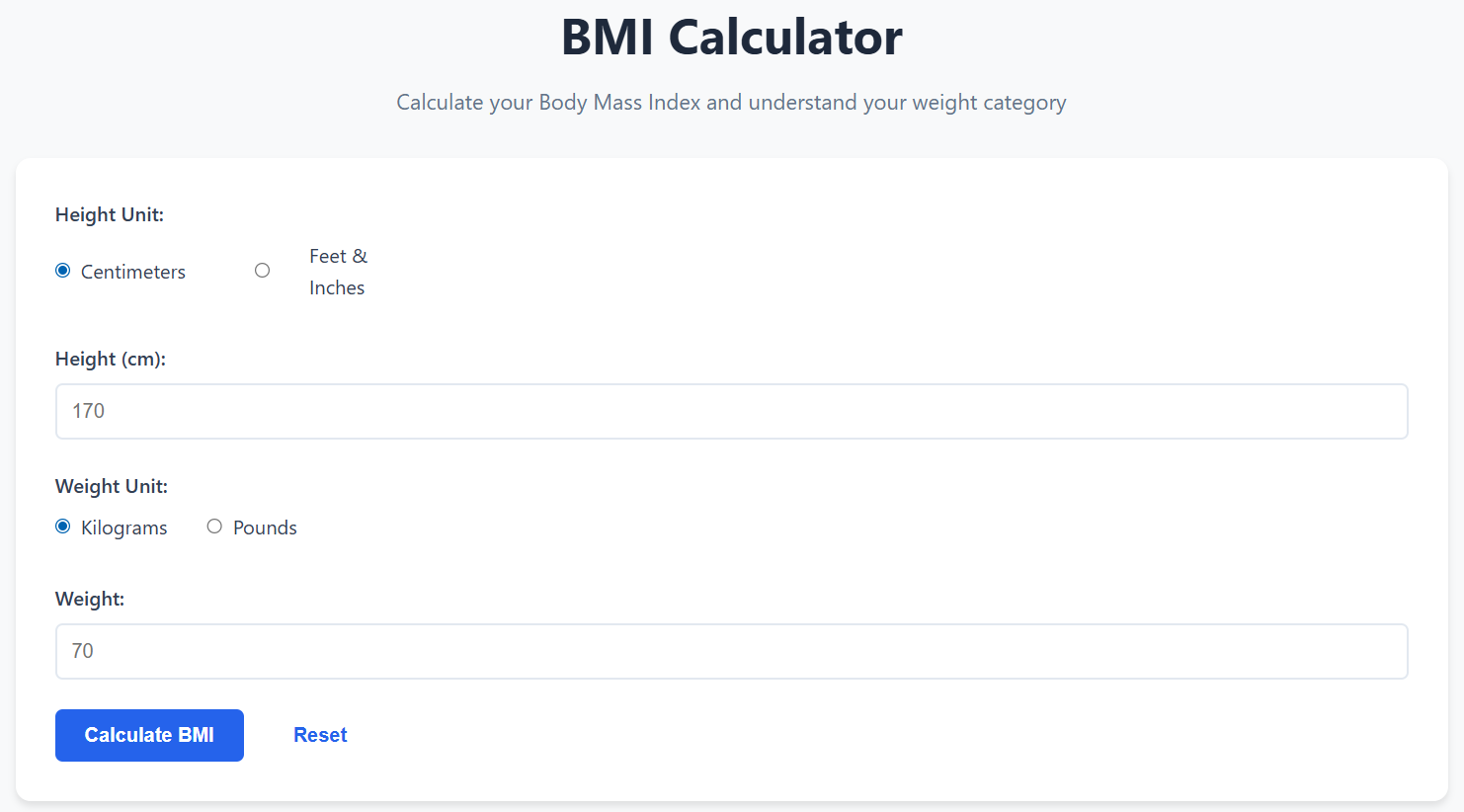
Key parts you’ll use
- Height Unit: Choose Centimeters or Feet & Inches.
- Height Input: Enter your height in the selected unit.
- Weight Unit: Choose Kilograms or Pounds.
- Weight Input: Enter your weight in the selected unit.
- Calculate BMI: Runs the calculation and displays results.
- Reset: Clears inputs so you can start over.
The calculator’s best feature is that it handles unit conversion automatically. That means you can use whichever system you’re most comfortable with, and still get a correct BMI.
3) How to Calculate BMI Using Centimeters and Kilograms
If you live in a country that uses metric measurements—or if your medical records are in metric—this is the simplest approach. Here’s the step-by-step process:
- Under Height Unit, select Centimeters.
- Enter your height in the Height (cm) field (example:
170). - Under Weight Unit, select Kilograms.
- Enter your weight in the Weight field (example:
70). - Click Calculate BMI.
After calculation, the results section will appear (or update) below the button. You will see:
- Your BMI number (usually shown on the right side of the results panel).
- A category label (for example: Underweight, Normal, Overweight, Obese).
- A short explanation about what the category may mean.
- A horizontal scale that visually shows where your BMI falls.
4) How to Calculate BMI Using Feet/Inches and Pounds
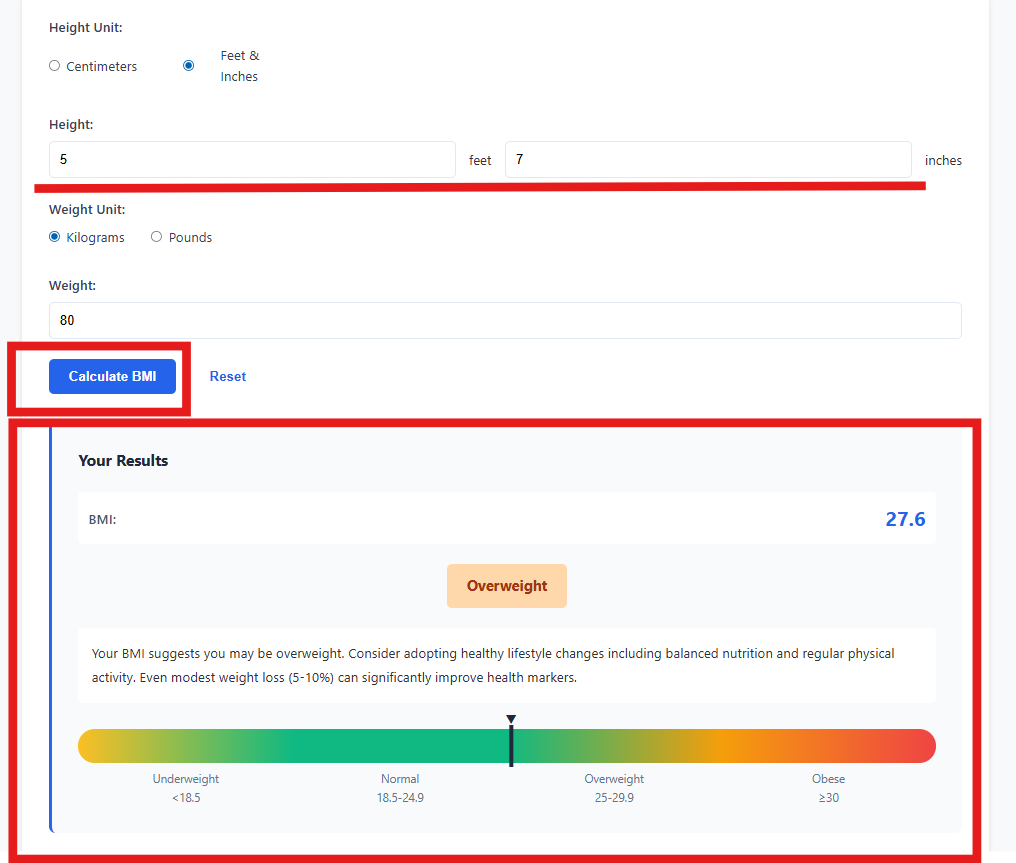
If you prefer imperial measurements, the calculator supports that too. When you choose Feet & Inches, the height input splits into two fields: one for feet and one for inches. You can then pick pounds for weight.
Step-by-step
- Select Feet & Inches under Height Unit.
- Enter your height (example:
5feet and7inches). - Select Pounds under Weight Unit (if you want lbs).
- Enter your weight (example:
176pounds). - Click Calculate BMI.
Behind the scenes, the calculator converts your height and weight into a consistent format (typically metric) and applies the BMI formula. You don’t need to do any manual conversions.
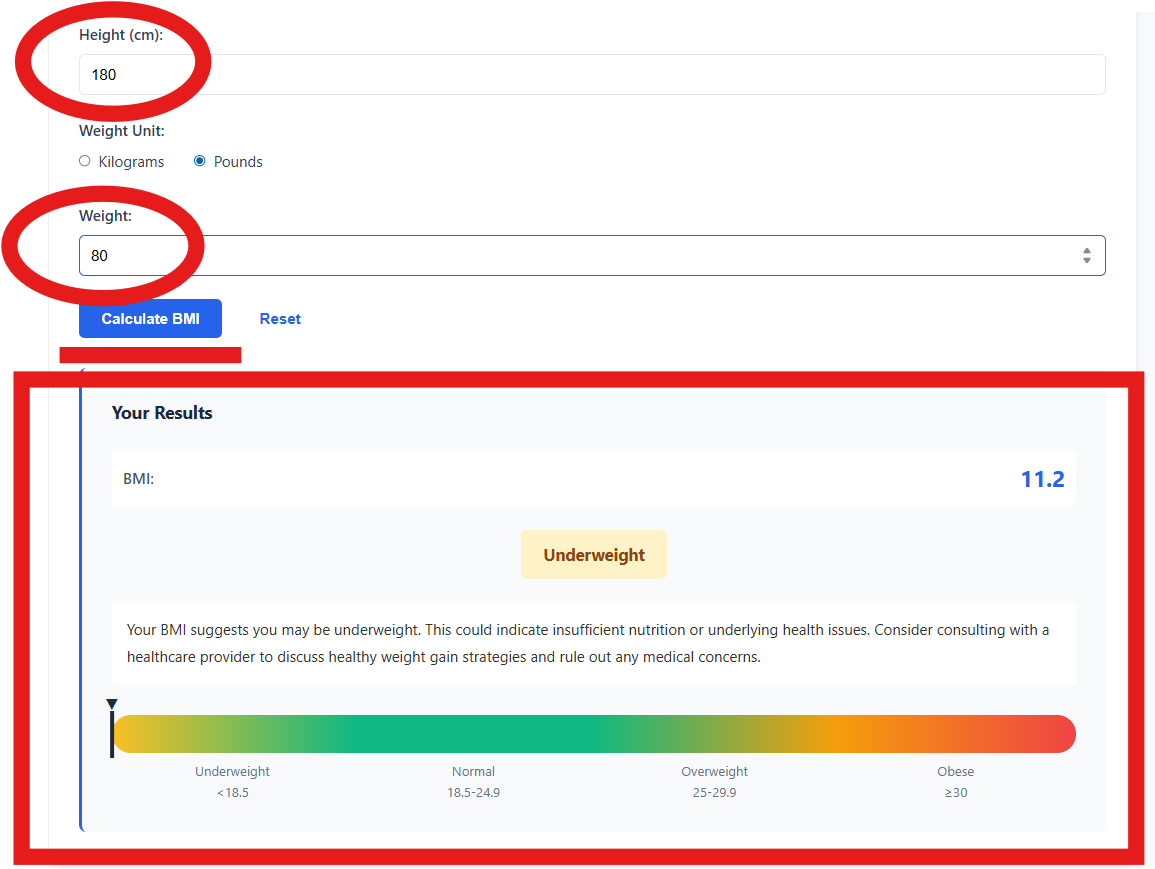
180 is a reasonable height in centimeters, but not in feet. Always double-check after switching.
5) Understanding Your Results: BMI Number, Category, and the Visual Range Bar
The results area is where the calculator becomes truly useful. It doesn’t just show a number—it helps you interpret what that number means in a typical BMI category system.
5.1 BMI categories (typical adult ranges)
Most BMI tools use standard adult ranges like these:
- Underweight: BMI < 18.5
- Normal weight: 18.5 – 24.9
- Overweight: 25.0 – 29.9
- Obese: 30.0 or higher
Your tool displays these categories visually along a colored bar, usually moving from lighter/greenish tones toward warmer colors as BMI increases. A small marker indicates your position. This makes it easy to understand your status at a glance, even if you don’t remember the exact cutoffs.
5.2 The result explanation text
Under the category label, the tool shows a short message explaining what the result could suggest. For example:
- If the result is Underweight, the message may suggest checking nutrition and consulting a healthcare provider if needed.
- If the result is Overweight, the message may suggest lifestyle changes like balanced nutrition and regular activity.
5.3 Why your BMI might look “surprising”
Sometimes users see a BMI result that feels too high or too low compared to how they perceive themselves. Common reasons:
- Incorrect unit selection (e.g., pounds entered while kilograms is selected).
- Wrong height (height errors affect BMI a lot because height is squared in the formula).
- Body composition differences (high muscle mass can push BMI up).
- Rounding (small differences in height/weight can shift categories near boundaries).
6) Practical Tips to Get a More Useful BMI Reading
6.1 Measure height correctly
- Stand straight with your back against a wall.
- Remove shoes.
- Measure in centimeters for precision (or use feet/inches carefully).
6.2 Weigh yourself consistently
- Use the same scale when possible.
- Weigh at a similar time of day (many people choose morning).
- Wear similar clothing each time.
6.3 Track trends, not single readings
BMI can fluctuate a bit due to hydration, meals, and daily changes. A single reading is useful, but a weekly trend is more meaningful. If your BMI is slowly moving toward a healthier range over time, that’s progress.
7) Limitations: When BMI Is Less Reliable
BMI is convenient, but it has limitations. Understanding them helps you use the tool responsibly.
7.1 Muscular individuals and athletes
BMI does not distinguish muscle from fat. If you have high muscle mass, you may get an “overweight” BMI even if your body fat is low. In that case, consider additional measures like waist circumference or body fat percentage.
7.2 Children and teens
BMI interpretation for children and teens usually relies on age- and sex-specific percentiles, not adult ranges. If the calculator uses adult categories, it’s best suited for adults unless the site explicitly provides pediatric percentiles.
7.3 Pregnancy and special medical conditions
During pregnancy or in certain medical situations, weight changes don’t map cleanly to BMI categories. Always consult a qualified professional for personalized guidance.
8) Frequently Asked Questions
8.1 “What BMI should I aim for?”
For many adults, the “normal” BMI range is often used as a general target (18.5–24.9). But the best target depends on your health, body composition, and goals. Some people feel best at the upper end of normal; others closer to the middle.
8.2 “Why did my BMI change even though my weight barely changed?”
Small weight changes can shift BMI, especially if you’re near category boundaries. Also, if your height input changes (even slightly), BMI can move more than you expect due to the squared height term.
8.3 “Is a higher BMI always unhealthy?”
Not always. BMI is correlated with risk at population level, but individuals differ. Activity level, diet quality, sleep, stress, and medical markers (blood pressure, glucose, cholesterol) matter too.
8.4 “What should I do after I calculate my BMI?”
Use the result to decide your next step:
- If your BMI is in the normal range, focus on maintaining healthy habits.
- If it’s underweight, consider nutrition quality and discuss concerns if you feel unwell.
- If it’s overweight or obese, consider gradual lifestyle changes and professional support if needed.
The best plan is the one you can keep doing consistently.
9) Quick Step Summary
- Choose height unit: Centimeters or Feet & Inches.
- Enter your height in the correct fields.
- Choose weight unit: Kilograms or Pounds.
- Enter your weight.
- Click Calculate BMI.
- Read your BMI score, category, and the visual range indicator.
- Use Reset to test other values or re-check your inputs.